23-12-2025 read time: 10 min.
Introduction to Microsoft Entra Private Access (GSA)

Welcome to my first ever blog post!
In this particular post I’d like to talk about the Microsoft Entra Private Access part of Microsoft Entra Global Secure Access and in this case the basics of it.
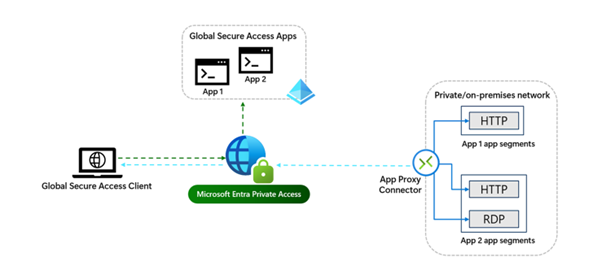
Source: Microsoft Learn
What are the main functions, what are the benefits, and where should you keep an eye on when implementing it? I will also cover the prerequisites needed to implement Single Sign-On for users and licensing requirements.
What is Microsoft Entra Private Access?
Microsoft Entra Private Access is a user-based Zero Trust Network Access (ZTNA) solution. It’s like a modern version of a VPN. The key difference is that users are no longer part of an entire subnet, which was the case with older VPN solutions.
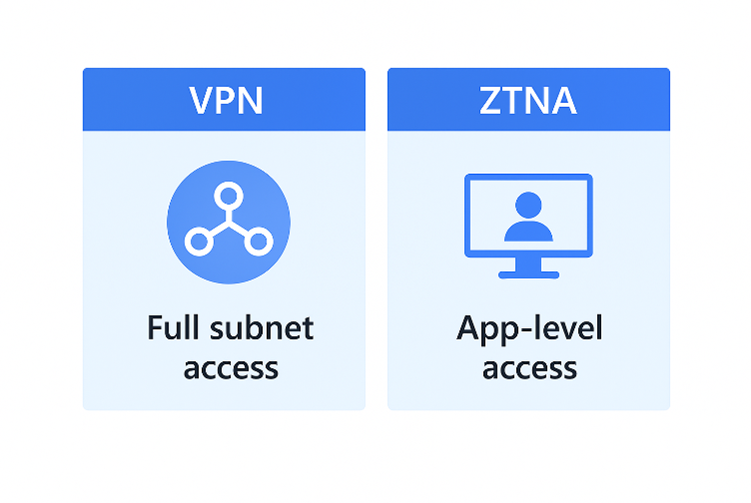
This can be very useful for companies that want to get rid of their VDI solution due to pricing changes from vendors like Citrix or Omnissa, but are struggling to find a secure way to provide access to these resources for Entra ID–joined machines.
Private Access provides secure access to these on-premises resources for Entra ID–joined machines.
It is also fully integrated and compatible with other solutions such as Intune, Conditional Access, and Access Packages.
When combined, these solutions provide access only when, for example, the device is compliant, the user risk is low, and MFA has been completed. Access Packages can add an extra layer of security if needed and if the required license is available.
What kind of licenses do you need to use Private Access?
There are a few licensing combinations you can use to enable Private Access:
- Microsoft Entra ID P1/P2 license + Microsoft Entra Private Access add-on license
- Microsoft Entra ID P1 + Microsoft Entra Suite license (if you also want to use Access Packages
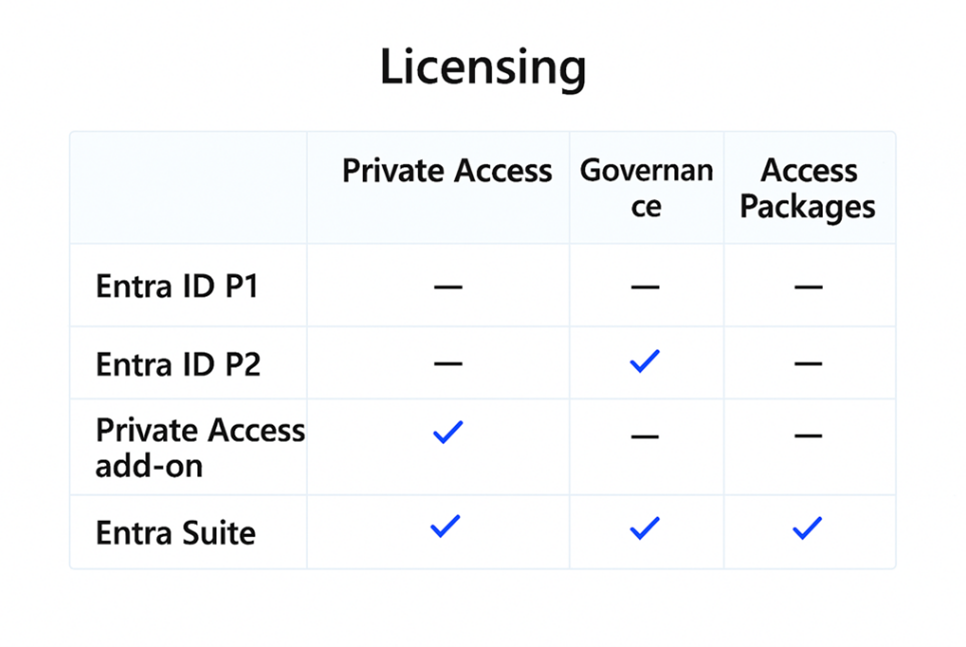
Note:
Entra ID P1 and P2 licenses do NOT contain the full feature pack of Private Access or Governance.
Entra ID P1 is included in Microsoft 365 E3, and Entra ID P2 is included in Microsoft 365 E5.
For more information, see:
https://www.microsoft.com/nl-nl/security/business/microsoft-entra-pricing?market=nl#x38e93701ebad4482b32df83ffe0f45bb
What are the key components of Private Access?
Let’s first talk about the physical components!
Private Network Connector
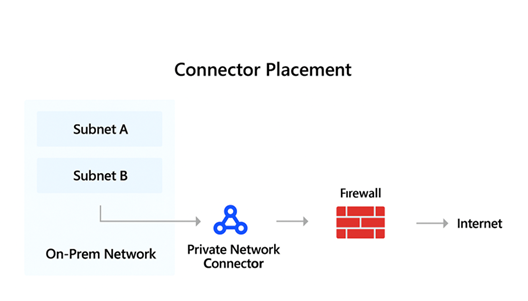
First of all, you need the Private Network Connector installed within your network. The connector should be installed in a subnet from which traffic can be routed to other subnets where your resources are located, or at least one per separate subnet.
The Private Network Connector can be downloaded from the Entra Admin Center.
The Private Network Connector is also available in the Azure Marketplace in case you want to run it in Azure.
The connector can be placed behind a firewall, but this is not required. It only needs outbound internet connectivity to specific Microsoft services and checks for new client connections every 1–2 seconds.
Global Secure Access Client
The second component is the Global Secure Access Client, which must be installed on every device that will use Private Access.
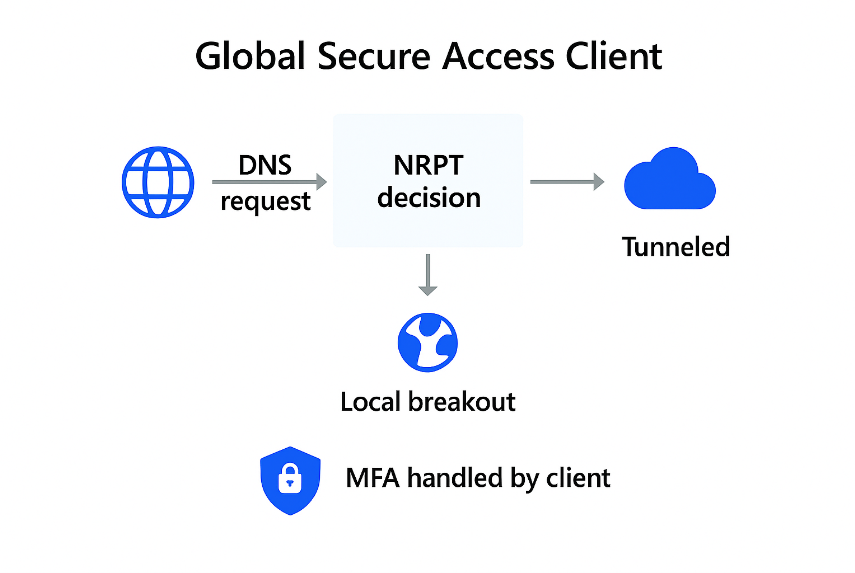
The Global Secure Access Client downloads changes to the traffic forwarding profile every five minutes and uses these rules to build an NRPT (Name Resolution Policy Table) to determine which traffic needs to be tunneled and which traffic should use local breakout.
The client also handles Multi-Factor Authentication, so your applications do not need to support MFA or Conditional Access.
And if your user does not have access to an Enterprise App, the GSA client displays a clear error message to the user indicating they do not have access to the resource and should contact IT.
GSA Client Platforms
The Global Secure Access (GSA) client is available for Windows 10/11, Windows 11 on Arm64, macOS, Android, and iOS.
At this moment the GSA Client is only compatible with Single-User OS Devices. So when deploying on for example AVD choose the right OS.
For the best experience, devices should be Entra ID-joined or MDM-enrolled, enabling Single Sign-On (SSO) and compliance checks.
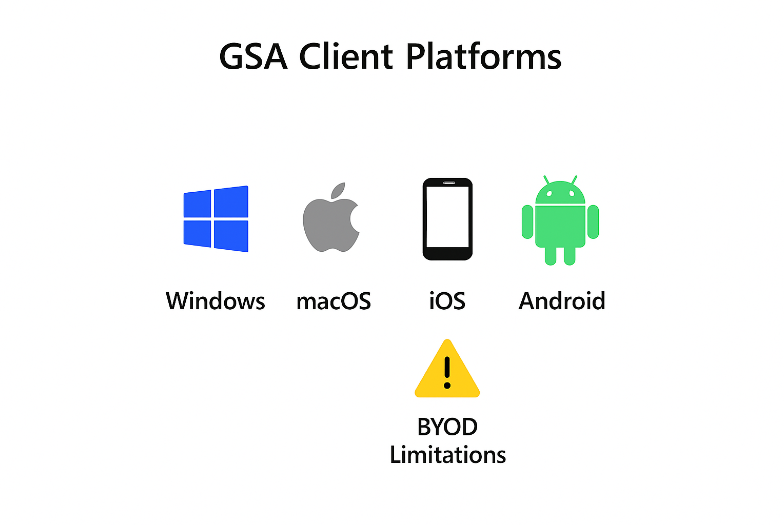
BYOD devices are supported but with limitations:
- No compliance checks
- GSA Cliënt cannot be deployed via Intune
- Intune configuration settings cannot be pushed
- SSO is not available, so users will see frequent sign-in prompts
Tip: For Windows devices, package the GSA client as a Win32 app for Intune deployment. On mobile platforms (iOS/Android), the client can be downloaded from official app stores.
Now let’s talk about the Entra components!
Traffic Forwarding Profile
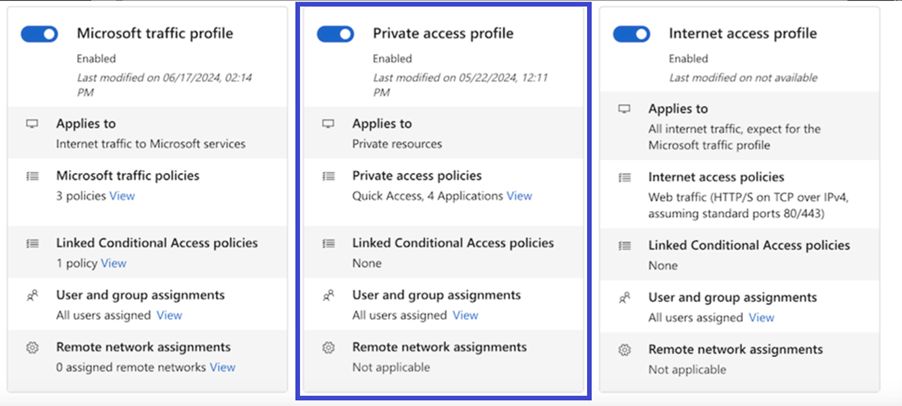
The traffic forwarding profile required for Private Access is the Private Access profile. In this profile, you can assign one or more user groups that will use Private Access and receive the traffic forwarding rules.
Connector Groups
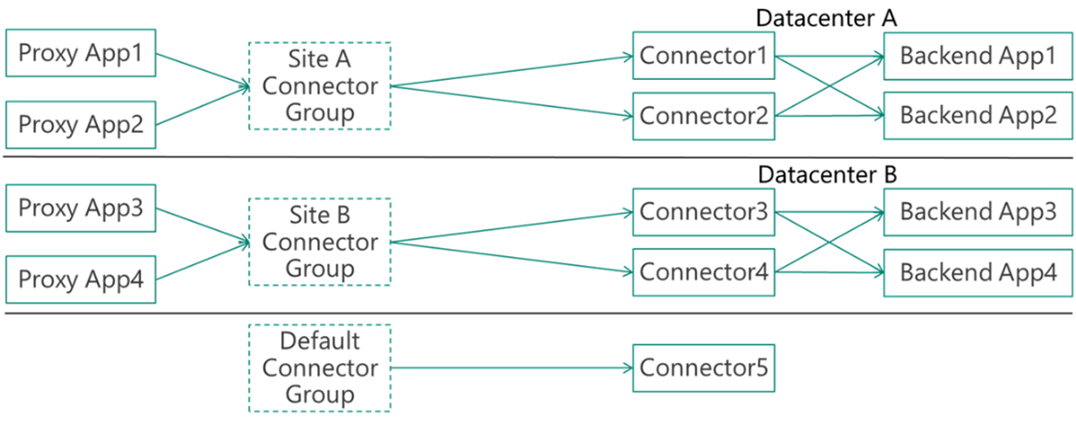
After installing your Private Network Connectors, they will be listed under the Default connector group. For routing purposes, it may be necessary to create additional connector groups to route traffic for specific Enterprise Applications through connectors in the correct subnets.
Best practice is to add at least two connectors to each connector group for high availability.
Source: Microsoft Learn
Quick Access App
The built-in Quick Access app provides access to common network resources such as domain controllers and DNS servers. You can also enable the Private DNS feature, which allows clients to query internal DNS servers for name resolution.
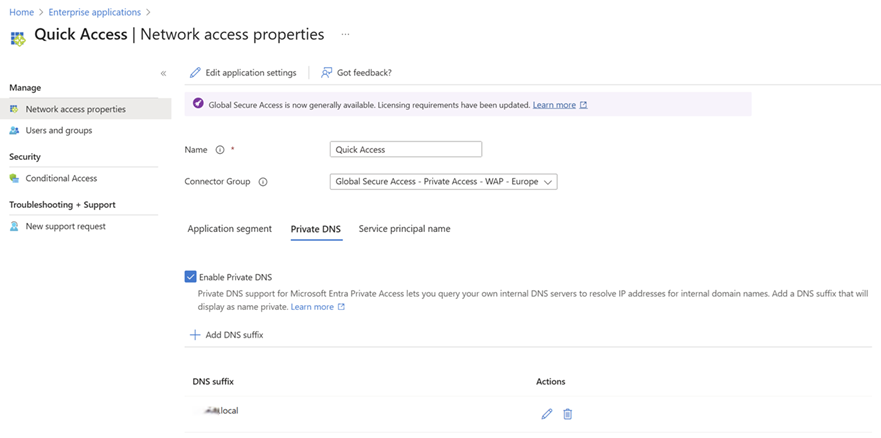
Make sure to select the correct Connector Group to ensure traffic is routed to the appropriate connectors. It's also important that the same group assigned to the Traffic Forwarding Profile is also assigned to the Quick Access app to avoid access issues — while this isn't strictly required, it’s highly recommended.
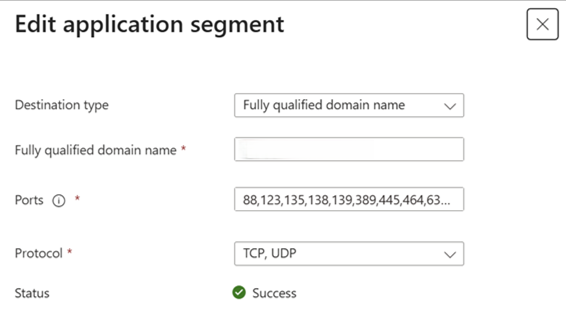
To provide the correct access to domain controllers and DNS servers, it is recommended to add the necessary ports as described in the following article. This will open the ports needed to support a Cloud Kerberos Trust:
https://learn.microsoft.com/en-us/entra/global-secure-access/how-to-configure-kerberos-sso
Domain controllers can be added as application segments within the Quick Access app. These segments can consist of Fully Qualified Domain Names (FQDNs), IP addresses, IP ranges (CIDR), or IP-to-IP ranges.
Ports can be listed separately by commas, and port ranges can be specified using a dash between the starting and ending ports (e.g., 80, 443, 49152-65535).
You will also need to choose the type of protocol to use: TCP or UDP.
Enterprise Apps
Enterprise Apps are set up similarly to the Quick Access app, but without the DNS properties and SPNs.
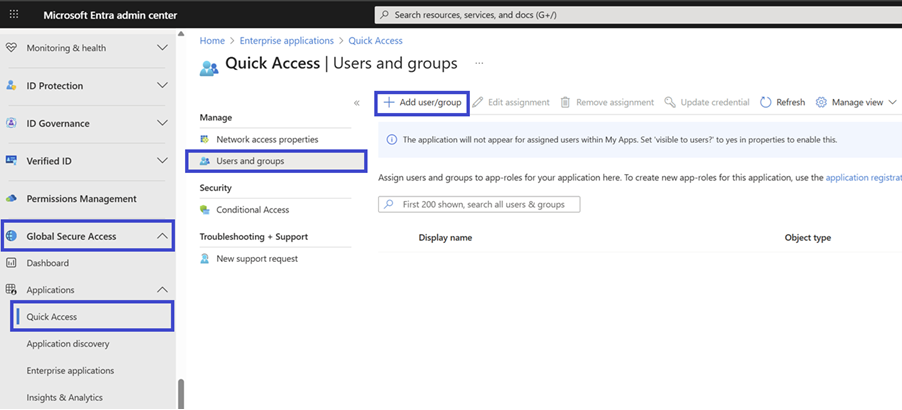
You will need to select a Connector Group to route traffic correctly, create a Network Segment, and then assign a User/Group to it.
Cloud Kerberos Trust and Windows Hello for Business
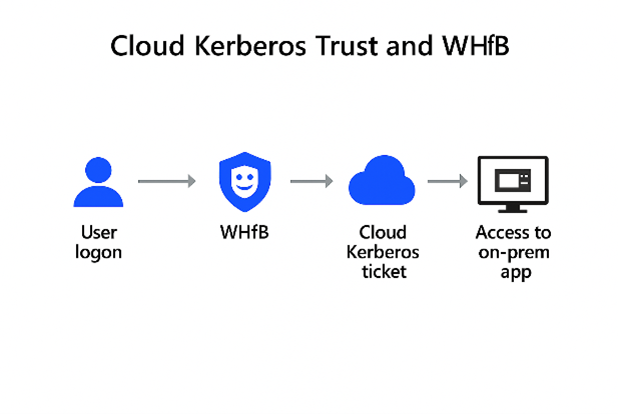
To provide a smooth SSO experience, it is recommended to enable Windows Hello for Business and configure a working Cloud Kerberos Trust.
This ensures that when a user logs on and the GSA client starts, a Cloud Kerberos ticket is retrieved automatically, allowing users to access internal applications without credential prompts.
Also make sure to set the FarKdcTimeout registry value to 0 to prevent Kerberos negative caching, which can otherwise block ticket retrieval for up to 10 minutes after a failure.
More information can be found here:
https://learn.microsoft.com/en-us/entra/global-secure-access/how-to-configure-kerberos-sso#how-to-avoid-kerberos-negative-caching-on-windows-machines
I implemented this using a detection and remediation script in Intune, and it works very well.
Conditional Access
Private Access supports Conditional Access policies, and it is recommended to use them. Configuration works the same way as with any other Enterprise Application. Simply create or modify a Conditional Access policy and select the Enterprise Application as the target resource.
Traffic flow
Now that you’ve read about the components and requirements of Private Access, it’s time to explain the traffic flow.
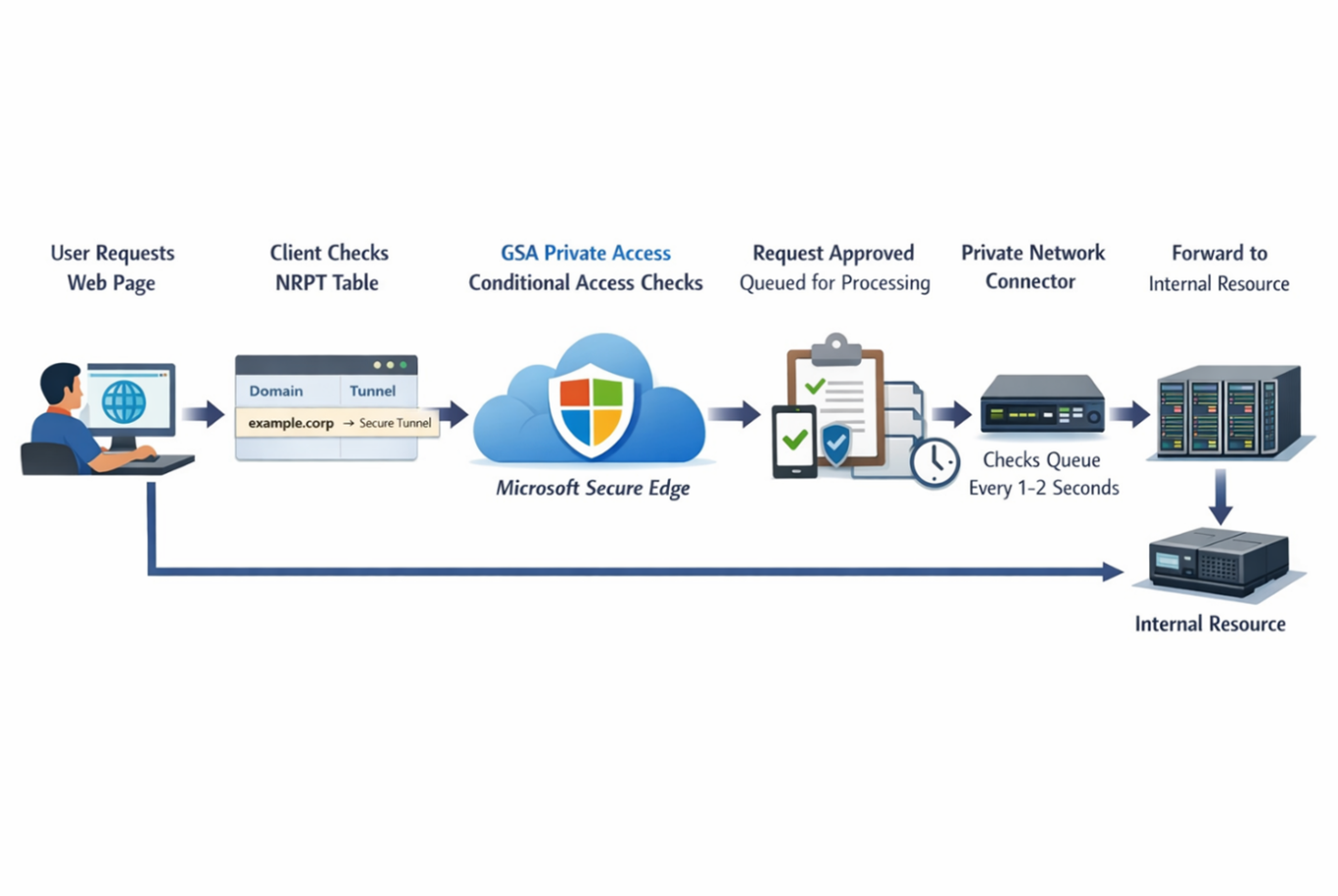
The traffic flow of GSA Private Access looks like this:
A user requests access to a web page → the client checks its NRPT table → if there is a match, traffic is tunneled to the Microsoft Secure Edge service → the request is evaluated by GSA Private Access, including Conditional Access checks (for example, device compliance) → if approved, GSA queues the request → every 1–2 seconds, the Private Network Connector checks the queue, retrieves the request, and forwards it to the internal resource.
Monitoring
Monitoring is also very important.
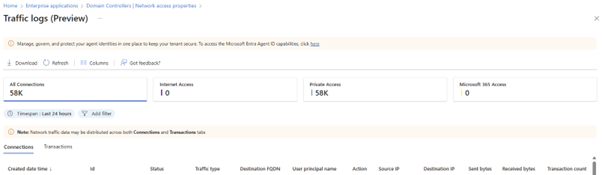
GSA provides a monitoring section where you can view all traffic flowing through Private Access in the Traffic Logs. You can filter on items such as UPN, destination FQDN, and destination IP, and distinguish between Private Access traffic, Internet traffic, and Microsoft 365 traffic.
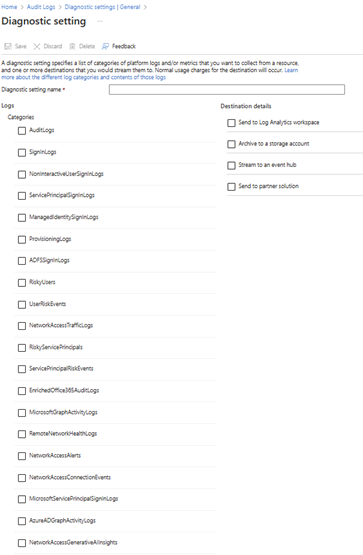
There is also an Audit section where you can configure Export Data settings. These settings allow you to forward logs to destinations such as a Log Analytics workspace, a storage account for archiving, an Event Hub, or a partner solution.
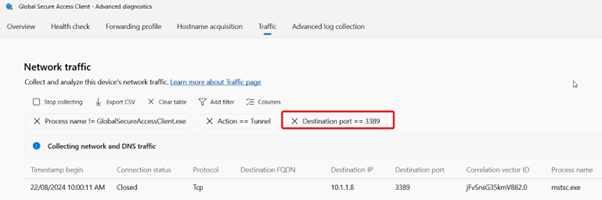
Client logs can be found within the GSA client itself. Here you can find the ‘Health Check’, the ‘Forwarding Profile’ with network access rules, DNS requests in ‘Hostname acquisition’, current tunneled traffic in ‘Traffic’ and ‘Advanced log collection’.
Source: Microsoft Learn
Connector health can be viewed in the section where you configure Network Connector Groups, where you can see whether connectors are active or experiencing issues.
What to keep in mind with Private Access?
First, latency. like any VPN solution, Private Access introduces latency, which can cause issues for applications with high I/O requirements, such as database-intensive workloads. The region where the client resides versus the region where the connector resides is also important.
Second, applications with hard-coded IP addresses can be problematic. As a workaround, you can add IP address records alongside the FQDN of the application resource.
Third, I like to create the Enterprise Apps based on FQDN of the backend resource, this prevents overlap of IP and Ports and it gives you a clear overview of what is configured and where it is configured.
Fourth, Private Access is only compatible with Windows Single User OS systems, Windows Multi User OS systems are NOT supported.
Summary & Key Takeaways
Microsoft Entra Private Access is a modern Zero Trust Network Access (ZTNA) solution that provides secure, user-based access to on-premises resources without traditional VPNs or VDI. Access is granted based on identity, device compliance, and Conditional Access rather than network location.
Key takeaways:
- User-based, Zero Trust access instead of subnet-level VPN connectivity
- Deep integration with Entra ID, Intune, Conditional Access, MFA, and Access Packages
- Requires the Global Secure Access client and Private Network Connectors
- Proper use of Connector Groups is essential for routing and high availability
- Quick Access and Cloud Kerberos Trust improve SSO and authentication experience
- Licensing, latency, and application dependencies (e.g., hard-coded IPs) must be considered
Microsoft Entra Private Access offers a secure and scalable alternative for accessing internal applications when designed and implemented correctly.
If you have any tips, found a mistake (yes i can also make mistakes ;) ), want to leave a message or want to contact me to have a talk, please fill in the contact form and I will get in touch!
I hope you enjoyed reading this blog about Private Access. Stay tuned—more content is coming!