Microsoft Entra Internet Access: Content Policies explained
Understanding how Content Policies work in Microsoft Entra Internet Access, how to configure them, where Microsoft Purview adds value, and what I learned while testing them in my own environment.
12-10-2026 read time: 15 min.

In my previous blog post about Prompt Injection Protection, I explained how Microsoft Entra Internet Access can protect users against malicious prompts designed to extract sensitive information from AI tools. I also explained that Prompt Injection Protection is not a Data Loss Prevention (DLP) solution. It does not prevent users from uploading files or submitting text to AI services such as ChatGPT, Gemini, or Claude.
For many organizations, that scenario is an important concern. How do you prevent confidential documents or text from being shared with AI tools, personal email services, or cloud storage platforms? This is where Content Policies in Microsoft Entra Internet Access come into play.
In this blog, I explain what Content Policies can and cannot do, the role of TLS Inspection, and where the limitations are. I also show which prerequisites are required to use this functionality and how Content Policies relate to Microsoft Purview DLP.
Why Web Filtering is not enough
Many users rely on services such as ChatGPT, Gmail, or Dropbox in their daily work. The challenge is not necessarily access to these services, but the information exchanged through them. A user could upload a confidential document to an AI tool, download a ZIP file from an unknown website, or forward a business attachment to a personal email address.
Web Content Filtering controls access at the website, FQDN, or category level. Blocking an entire service is often too restrictive when users still need it for legitimate business purposes.
More granular controls are therefore needed to manage file transfers and sensitive information without blocking access to the service itself.
What are Content Policies?
Content Policies inspect file transfers and text input within allowed web traffic and determine whether that content is allowed, blocked, or submitted to Microsoft Purview for further inspection.
For example, Content Policies can allow or block uploads and downloads of file types such as PDF, DOCX, or ZIP for specific websites. They can also inspect text input for sensitive information.
Behind the scenes, Content Policies use MIME types (Multipurpose Internet Mail Extensions) to identify file types. The check is not limited to the file extension; it also uses the actual file type detected during the upload or download. This prevents users from simply renaming a file from, for example, .pdf to .txt to bypass a policy.
For content-aware inspection, Content Policies can work with Microsoft Purview. I cover this integration in more detail later in this blog.
Prerequisites
Let’s look at the prerequisites: what do you need to use Content Policies?
Basic content filtering requires a valid Microsoft Entra Internet Access license. Scan with Purview additionally requires appropriate Microsoft Purview DLP licensing. Because Microsoft’s licensing requirements can change, verify the current requirements in Microsoft Learn before implementation.
The next important requirement is TLS Inspection. Content Policies can only work effectively when traffic is decrypted so the content can be inspected. Without TLS Inspection, uploads and downloads cannot be evaluated. This also requires distributing the TLS Inspection root certificate to the endpoints.
For endpoint traffic, the Global Secure Access client routes internet traffic through Microsoft Entra Internet Access so Content Policies can be enforced. Content Policies can also be applied to supported Copilot agent traffic, where no Global Secure Access client is involved.
Finally, several endpoint configurations must be considered. I recommend disabling QUIC because UDP traffic is not tunneled through Internet Access. DNS over HTTPS (DoH) should also be disabled so domain names can be inspected and classified correctly.
Only when this foundation is in place can Content Policies be used reliably to control uploads and downloads.
How does it work behind the scenes?
What exactly happens when Content Policies are active?
Traffic is picked up by the GSA client and sent through an encrypted tunnel to Microsoft’s Secure Service Edge (SSE).
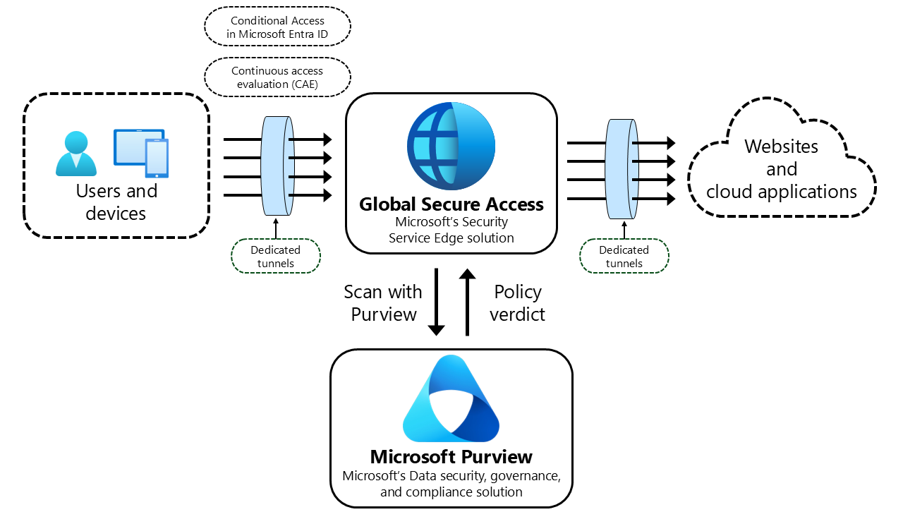
Source: Microsoft Learn
TLS Inspection decrypts the traffic there. The content then becomes visible, allowing Microsoft Entra Internet Access to determine which file type is being uploaded or downloaded and to make text entered directly into a web application available for content-aware inspection.
MIME detection identifies the actual file type. If the policy uses Scan with Purview, Purview can evaluate both file content and supported text input for sensitive information.
Based on these checks, the file transfer or text submission is either allowed or blocked.
Practical use cases
Content Policies can be used in several scenarios.
Restricting Shadow AI:
Many organizations do not want to block AI tools completely, but they do want control over which information is shared with them. Content Policies can, for example, prevent users from uploading documents to:
- ChatGPT
- Gemini
- Claude
You can also apply this more broadly by blocking uploads to the entire Artificial Intelligence category. With Purview integration, sensitive information entered directly into prompts can also be inspected and blocked. AI tools remain available for general questions while the risk of sharing company information is reduced.
Restricting personal email:
Another common use case is restricting personal email services for file exchange. This includes blocking uploads and downloads through services such as:
- Gmail
- Outlook.com
This can prevent files from being uploaded to or downloaded from personal email services. With Purview integration, sensitive text entered directly into webmail can also be inspected and blocked.
Restricting cloud storage:
The same principle can be applied to cloud storage services. You can block uploads and downloads to platforms such as:
- Dropbox
- Google Drive
- WeTransfer
Users can still visit these services, but file exchange is restricted or blocked completely.
Blocking downloads:
Content Policies can also block specific file types during downloads, including:
- ISO
- VHD
- VHDX
These files are often large and are regularly used for software distribution or exchanging complete images. Depending on your policy, you may want to restrict or block these downloads completely.
Where MIME-based Content Policies stop
MIME-based Content Policies inspect the file type, but not the information within a file or text entered directly into a web application. Sensitivity Labels and Sensitive Information Types are therefore not included in MIME-based inspection.
A PDF file can contain a public brochure, but it can just as easily contain financial data, medical information, or business-sensitive data. The MIME type alone cannot make that distinction.
By combining Content Policies with Microsoft Purview DLP, files and supported text input can be checked for sensitive information and classifications. The question then shifts from which file type is being transferred to what information is being shared.
For this to work, Global Secure Access and Purview must be integrated correctly.
Configuring a Content Policy for Purview inspection
In Global Secure Access > Secure > Content Policies, create a policy with one or more rules for the traffic you want to analyze.
Select the Scan with Purview action. For each rule, define whether uploads, downloads, or both are inspected and which file types are included. During testing, you can also select all supported file types.
Next, configure the destination. For AI scenarios, you can use the Artificial Intelligence category. Wildcards are supported for subdomains, allowing destinations such as *.oaiusercontent.com to be included in the policy. Modern web applications frequently use separate backend URLs and FQDNs for file uploads. Defining only the visible website address might therefore be insufficient. Use browser developer tools and the Global Secure Access Traffic Logs to identify the actual upload endpoints.
Add the Content Policy to a Security Profile and assign that profile to the correct users or groups through Conditional Access. The complete chain is:
Conditional Access → Security Profile → Content Policy → Purview Inline web traffic DLP policy
The role of Microsoft Purview
Global Secure Access determines which traffic is submitted for inspection. The Purview Inline web traffic DLP policy determines which sensitive information is detected and which action is taken.
For web traffic, create a separate policy for Inline web traffic in Purview under Data Loss Prevention > Policies. This policy type is specifically intended for network traffic and AI applications and is separate from traditional DLP locations such as Exchange, SharePoint, and OneDrive. Because no standard templates are currently available, start with a Custom Policy.
Next, select the cloud applications or application categories to which the controls apply. You can include generative AI applications, unmanaged cloud applications, or cloud storage services.
Within the policy, configure rules for personal data, credit card details, other Sensitive Information Types, or Sensitivity Labels. A file allowed based on its MIME type can still be blocked after content inspection.
The actions target browser and network activity, such as blocking text sent to an AI tool, uploads to cloud storage, or downloads from these services. You can also configure alerts to follow up on policy violations in Purview.
Configuration and testing
To demonstrate how Content Policies work, I created a test document containing Dutch citizen service numbers (BSNs) and applied a Sensitivity Label for sensitive information.
I then created a Content Policy and configured the Scan with Purview action, as shown below.
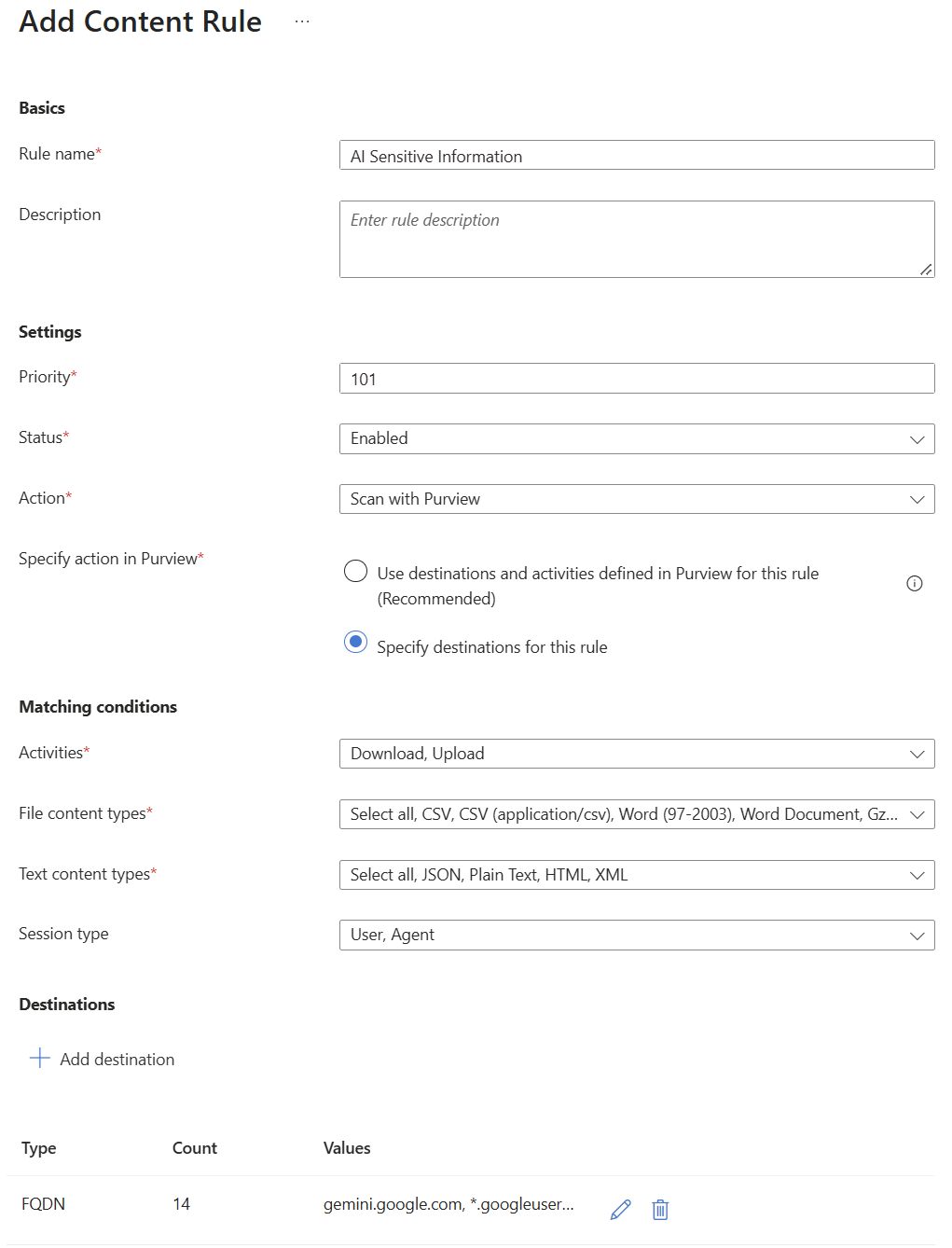
For this test, I defined the destinations directly in the Content Policy. The scope can also be configured from Microsoft Purview.
With the configuration in place, I tested the policy by uploading the file to Gemini.
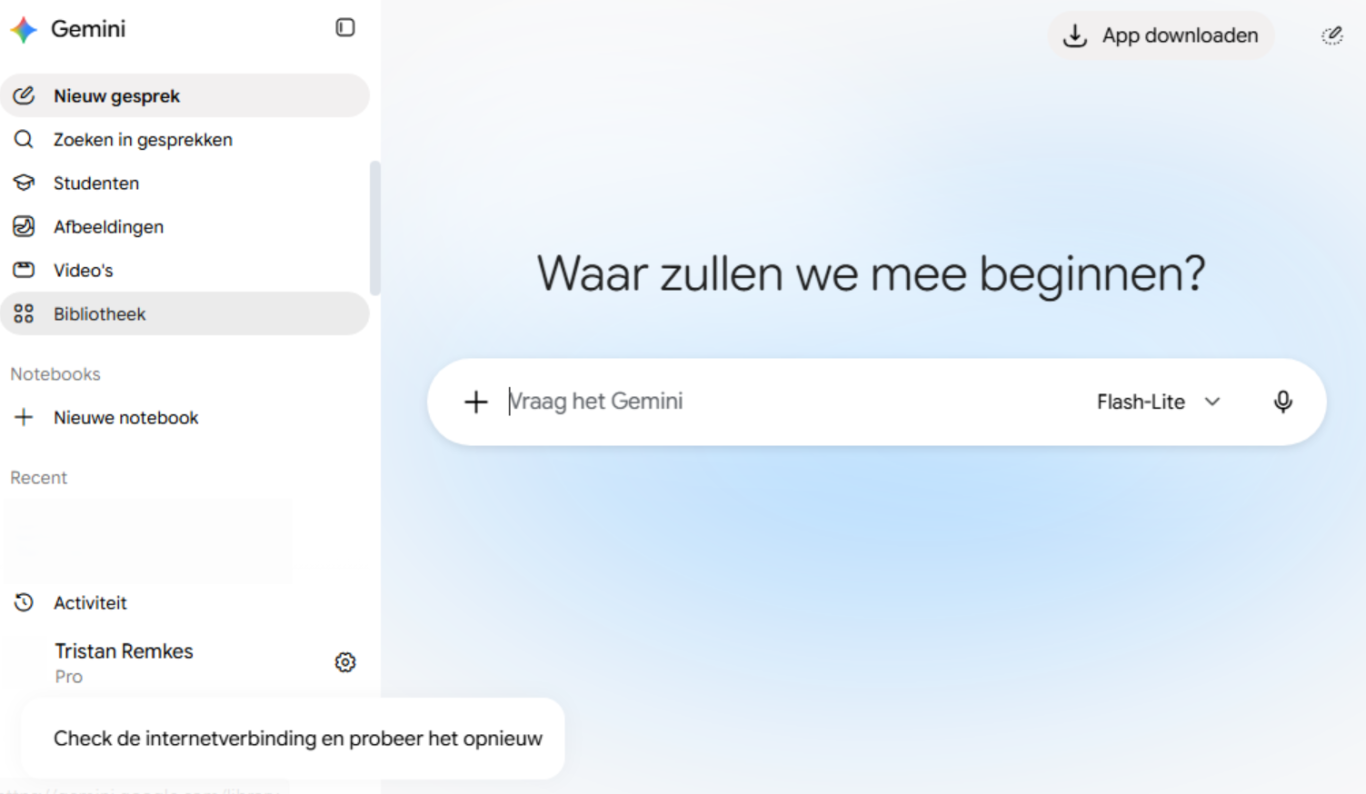
As shown above, the upload is blocked. The GSA client does not display a separate notification; Gemini only reports an internet connection issue. The file transfer itself is blocked by the policy.
The result is also visible in the Global Secure Access Traffic Logs under Transactions. The transaction details show that the file was scanned by Purview and then blocked.
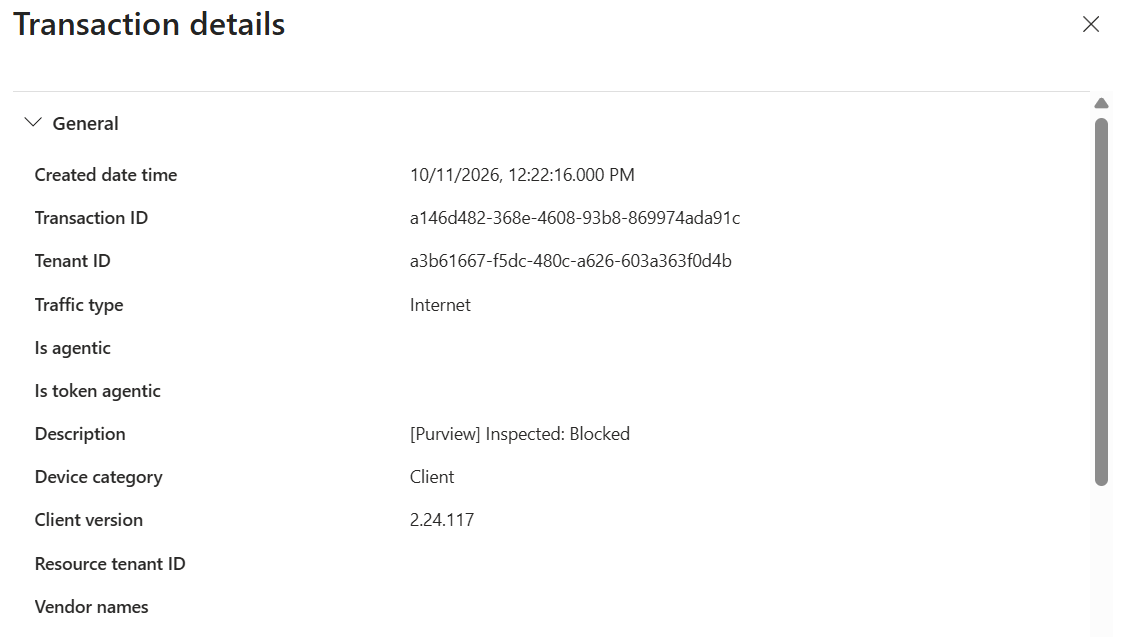
The same transaction details also show which policy caused the block.
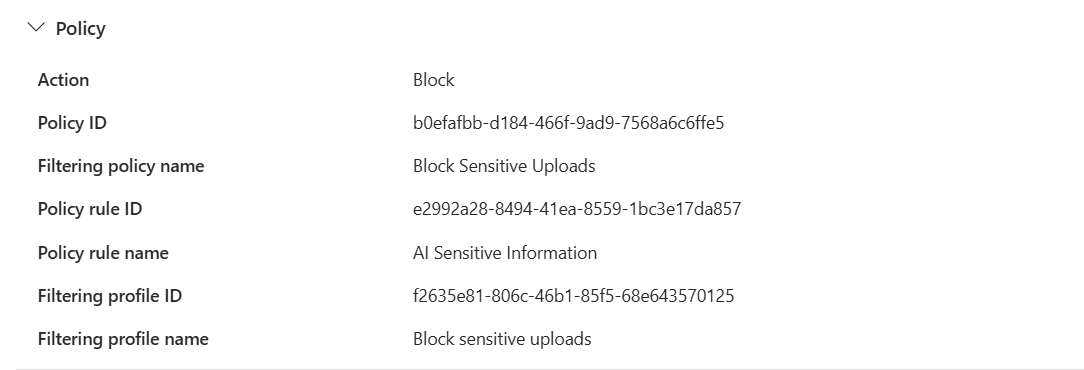
The test confirms that Content Policies combined with Microsoft Purview can prevent sensitive information from being uploaded to unauthorized websites.
Limitations and considerations
As with any security control, Content Policies have several limitations that must be considered.
Use blocking rules for HTML and JSON text types carefully. These payload types are widely used by websites and APIs, so broad blocking can unintentionally disrupt normal GET, POST, and PUT operations.
When a web category is used as a destination in a Content Policy, a Web Content Filtering policy must also be configured. This requirement does not apply in the same way when specific FQDNs or URLs are used as destinations. During testing, the category only needed to be present in the Web Content Filtering policy; the Content Policy was still evaluated regardless of whether the category action was configured as Allow or Block.
File inspection also depends on how an application transfers files. It works correctly in most scenarios, but some applications package files differently, which can prevent inspection. The same applies to files split across multiple uploads.
When using the Microsoft Purview integration, keep in mind that, at the time of writing, the maximum supported content size for inspection is 3 MB. Purview cannot complete the analysis for larger content, so the traffic is allowed. This fail-open behaviour must be included in the risk assessment. Images submitted through inline web traffic are not currently processed using OCR. A screenshot of a confidential document is therefore handled differently from the actual document file.
Scan with Purview only applies to traffic that can be linked to a Microsoft Entra user identity. If that link cannot be made, the traffic is not sent to Purview for inspection.
After implementation, regularly check the Global Secure Access Traffic Logs. The transaction details show which Content Policy was applied and the resulting action. This allows you to verify that the policies work as expected and investigate unexpected behaviour.
Conclusion
Content Policies in Microsoft Entra Internet Access provide targeted control over files that users upload and download through web applications. Instead of blocking an entire website, you can use MIME types to define which file types are allowed. With Microsoft Purview, supported text input can also be inspected for sensitive information. Services such as ChatGPT, Gmail, Dropbox, and WeTransfer remain available while unwanted file transfers and sensitive text submissions are restricted.
Content Policies are sufficient when the goal is to block specific file types for selected websites or categories. If the decision must be based on the information contained in a document or entered directly into a supported web application, Microsoft Purview is required. Purview can inspect Sensitivity Labels and Sensitive Information Types, allowing a regular PDF or harmless prompt while blocking content that contains personal or financial information.
Together, both functions provide a targeted control layer for AI tools, personal email, and cloud storage. Organizations can keep these services available while controlling which files and information can leave the organization.
Thank you for reading. If you have any questions, feedback, or experiences you would like to share, feel free to contact me.