TLS Inspection in Microsoft Entra Internet Access: More Visibility, More Responsibility
A practical look at TLS Inspection in Microsoft Entra Internet Access, including traffic flow, certificate requirements, policy benefits, bypass rules, privacy considerations, and real-world rollout advice.
15-07-2026 read time: 15 min.

TLS Inspection in Microsoft Entra Internet Access looks straightforward at first: decrypt HTTPS traffic, inspect it, and apply policy. In practice, it is the feature that enables deeper visibility and more granular security controls for encrypted web traffic.
In this post, I’ll walk through what TLS Inspection actually does, what you need to configure, which extra capabilities become available, and which privacy and operational topics you should not skip before enabling this in production.
What is TLS Inspection?
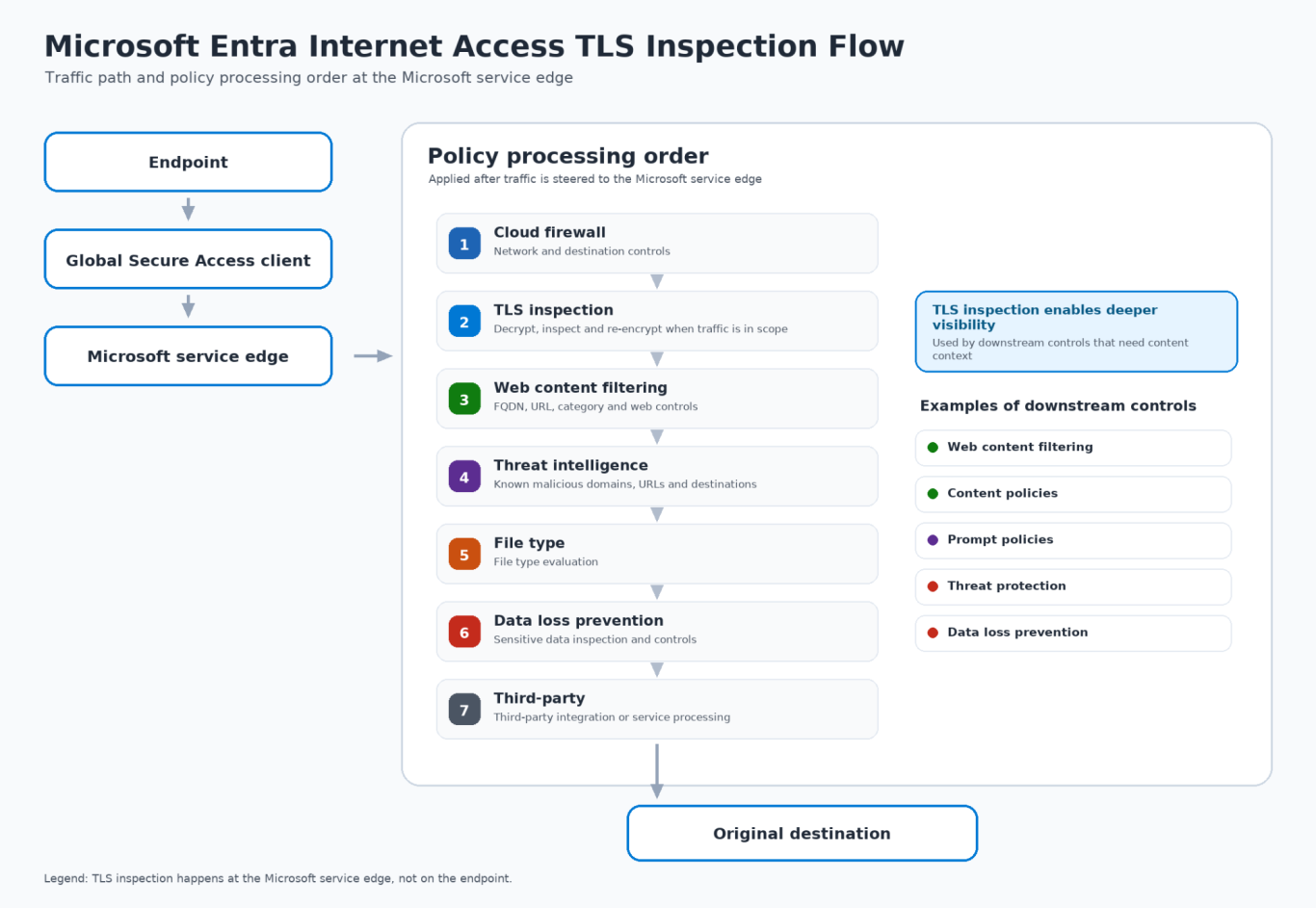
TLS Inspection allows Microsoft Entra Internet Access to decrypt HTTPS traffic at the service edge, inspect the traffic, apply policy, and then re-encrypt the session before sending it to the original destination. This means Global Secure Access can evaluate more than destination-level signals such as FQDN, category, or reputation. It can also inspect activity inside the encrypted session, including full URL paths, page content, file uploads, downloads, prompts, and other web activity.
Traffic flow at a high level
The diagram below shows how traffic is processed through Microsoft Entra Internet Access and where TLS Inspection fits into the policy evaluation pipeline.
How to enable TLS Inspection
Before you can use TLS Inspection, Global Secure Access needs a certificate authority that can issue the certificates used during TLS termination. In a production environment, this should be part of your trusted PKI design. The important part is simple: endpoints must trust the certificate chain used by Microsoft Entra Internet Access, otherwise users will run into certificate warnings or broken HTTPS sessions.
Certificate requirements
For Global Secure Access, the signed certificate must meet the following requirements:
- Extended Key Usage: Server Authentication
- Basic Constraints: CA=true
- Key usage: keyCertSign and cRLSign
- Basic Constraints extension: basicConstraints=critical,CA:TRUE
- Path length constraint: pathLenConstraint=1
Using the Microsoft PowerShell script
You can build and sign this certificate manually, but I would not make that my starting point. Microsoft provides a PowerShell script for Active Directory Certificate Services that can help generate the CSR and support the certificate process. You still need to understand and validate what the script creates before using it in production, but it removes a lot of unnecessary trial and error around certificate extensions, formatting, and validation.
Field note: I first tried to create the certificate manually and kept running into validation errors. The problem was not the idea itself, but the exact certificate properties and extensions that Global Secure Access expects. My advice is simple: use the documented Microsoft script first, validate it with a pilot, and only build a custom process when you have a real PKI requirement for it.
Microsoft reference: Microsoft provides the PowerShell script for Active Directory Certificate Services here: https://learn.microsoft.com/en-us/entra/global-secure-access/scripts/powershell-active-directory-certificate-service
Benefits of Enabling TLS Inspection
The biggest change with TLS Inspection is visibility. Without it, Global Secure Access can still make useful decisions based on destination-level signals such as FQDN, web category, and reputation. With TLS Inspection enabled, more advanced controls become possible because encrypted content can be inspected.
- Web Content Filtering Policies (V1)
Web Content Filtering V1 already supports destination-level controls such as FQDNs and web categories. With TLS Inspection enabled, Microsoft Entra Internet Access gets better visibility into encrypted HTTPS traffic, which improves the depth and visibility of web filtering decisions. - Web Filtering Policies (V2)
Web Filtering V2 is where TLS Inspection becomes more interesting for granular web controls. With decrypted HTTPS traffic, policies can make better decisions based on the actual request and activity, including HTTP methods such as GET, POST, PUT, PATCH, and DELETE. This helps distinguish between reading, uploading, modifying, or deleting content. - Content policies
Content policies are where TLS Inspection starts to add real value for content-aware decisions. Instead of only looking at the domain, URL, or category, Microsoft Entra Internet Access can evaluate the actual content of the page or web session. This makes it possible to apply controls based on what is being accessed or exchanged, not just where the traffic is going. A practical example is blocking document uploads to specific web applications or categories while still allowing users to browse or read content. This is where TLS Inspection helps move from simple access control to activity-based control. - Prompt policies
Prompt policies are relevant for AI and generative AI use cases. With TLS Inspection enabled, prompts and responses exchanged with AI services can be inspected, which helps enforce governance, compliance, and data protection requirements. - Threat Protection policies
Threat Protection policies benefit directly from TLS Inspection. Once HTTPS traffic can be inspected, Microsoft Entra Internet Access can detect malicious content, malware, and risky activity inside the encrypted session, instead of only relying on reputation or destination-level signals. - Data loss prevention policies
Data loss prevention policies need content visibility to detect and prevent sensitive data from leaving the organization. With TLS Inspection enabled, DLP can inspect uploads, posts, and data exchanged inside encrypted web sessions. - Custom Block Pages
For HTTPS traffic, custom block pages are only shown when TLS Inspection is enabled. Without TLS Inspection, Global Secure Access can evaluate the destination based on the domain name, but it cannot modify the encrypted session to present a custom block page. As a result, users may see a browser-generated error or connection message rather than an administrator-defined block page.
Important note: What does not require TLS Inspection?
The following capabilities do not require TLS Inspection and are available without decrypting HTTPS traffic:
- Threat Intelligence based on known malicious domains and destinations
- FQDN filtering
- URL category filtering
- Conditional Access integration
In short: without TLS Inspection, Global Secure Access mainly knows where traffic is going. With TLS Inspection, it can also understand more about what is happening inside the encrypted HTTPS session. That difference is important when you design your policies.
Always-on inspection, independent of network location
One important advantage of TLS Inspection in Microsoft Entra Internet Access is that inspection is not tied to the corporate network. In a traditional on-premises proxy or firewall design, traffic is usually only inspected when the user is physically on the corporate network or connected through VPN. With Global Secure Access, inspection can follow the user and device wherever they work, as long as the traffic is routed through the Global Secure Access client and matches the configured policies. This makes the model much better suited for hybrid work, unmanaged locations, and users who rarely connect to the office network.
What TLS Inspection does not do
TLS Inspection is not a magic switch that automatically makes every policy smarter. It enables deeper visibility into encrypted HTTPS traffic, but you still need proper policy design, clear scoping, exclusions, logging controls, and user communication.
It also does not mean that all traffic should be inspected. Some traffic should be bypassed for privacy, legal, compliance, or technical reasons. Certificate-pinned applications, sensitive personal services, and business-critical SaaS platforms may need exceptions. The goal is to inspect traffic where it adds value and where it is appropriate.
Performance Impact and User Experience
A common question is whether users will notice TLS Inspection during day-to-day use. In most environments, the performance impact should be validated rather than assumed. HTTPS traffic that is in scope for inspection must be decrypted, inspected, evaluated against policy, and re-encrypted at the Microsoft service edge before it continues to the original destination.
That does not automatically mean users will experience a major slowdown. In practice, user experience issues are more often caused by application compatibility, overly broad scoping, or missing trust in the inspection certificate chain. If an application does not tolerate inspection, it may fail or behave unexpectedly.
This is why the pilot phase matters. Test normal browsing, business-critical SaaS applications, file uploads, AI services, and applications that may use certificate pinning. Also include the servicedesk perspective: if users report login issues, custom block pages, or different website behavior, the support team should know what changed and how to troubleshoot it.
Best Practice
Treat performance and user experience as part of the rollout validation. Start with a pilot group, test realistic user scenarios, monitor feedback, and only expand TLS Inspection when the technical behavior and user impact are understood.
Deploy the trusted certificate chain to endpoints
Do not enable TLS Inspection broadly before the root and intermediate certificates are deployed to your managed endpoints. If the endpoint does not trust the certificate chain, users will see certificate warnings, applications may fail, and troubleshooting becomes messy.
Certificate Trust Chain Architecture
The certificate chain is one of the most important foundations of TLS Inspection. For the inspection process to work transparently, endpoints must trust the certificate authority chain used during inspected HTTPS sessions.
At a high level, the trust model looks like this:
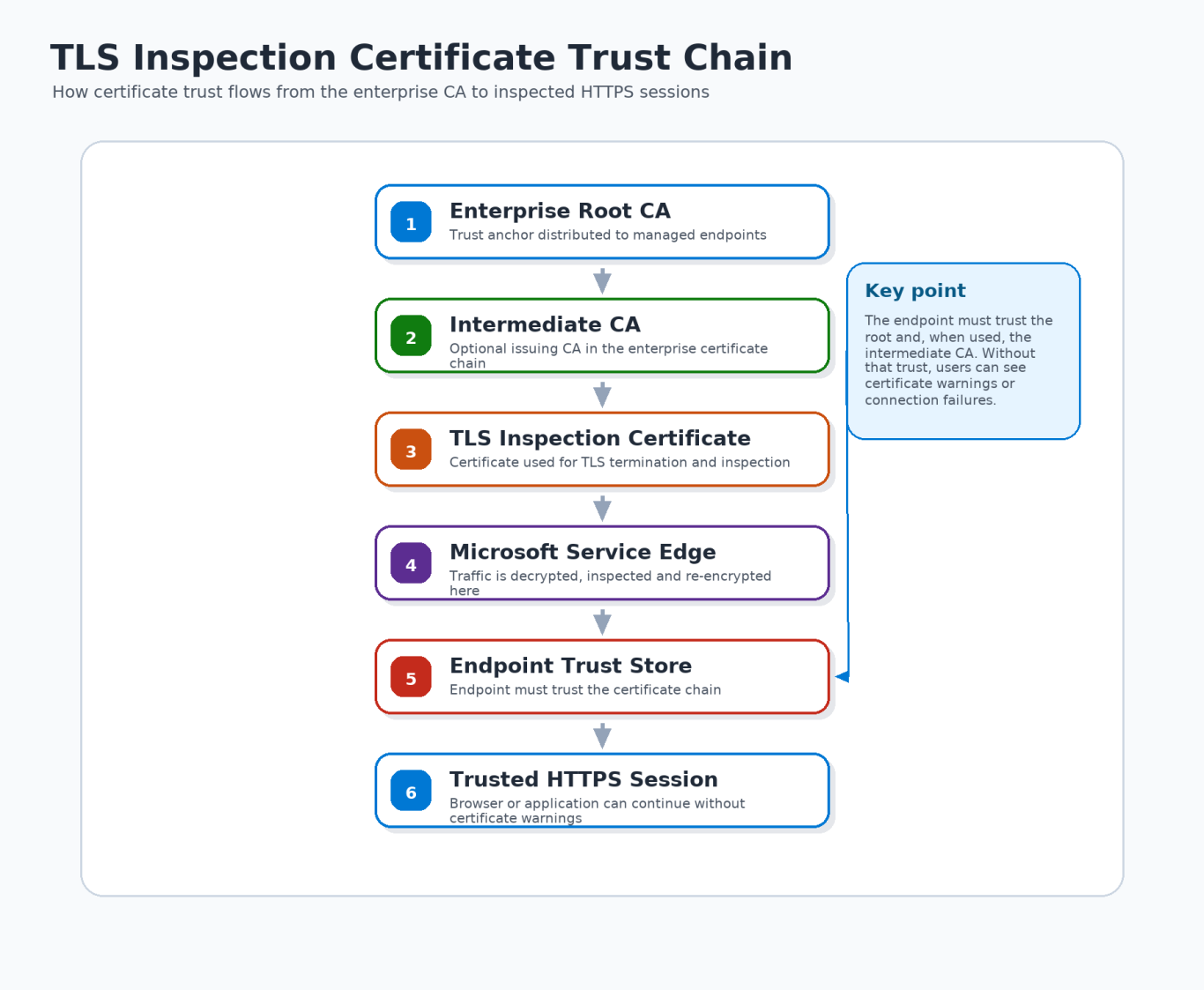
The endpoint must trust the root and, when applicable, the intermediate certificate that is part of the TLS Inspection chain. Certificates presented during inspected sessions must chain back to a trusted certificate authority on the endpoint.
Recommended deployment method
For Microsoft Entra joined and Intune-managed devices:
- Export the Root CA certificate used to sign the TLS Inspection certificate chain.
- Create a Trusted Certificate profile in Microsoft Intune.
- Assign the profile to users or devices that will be subject to TLS Inspection.
- Verify that the certificate is present in:
- Trusted Root Certification Authorities (Root CA)
- Intermediate Certification Authorities (if using an Intermediate CA)
- Validate deployment before enabling TLS Inspection broadly.
Validation
After deployment, verify that:
- The Root CA certificate is present on the endpoint.
- Browsers trust certificates generated through the TLS Inspection process.
- No certificate warnings are displayed when browsing HTTPS websites.
- Global Secure Access logs show traffic as Intercepted rather than Bypassed.
Best Practice
My recommendation: deploy the certificates first, validate them with a small pilot group, test normal browser traffic and business applications, and only then start assigning TLS Inspection policies more broadly. Also expect exceptions for certificate-pinned applications or other compatibility reasons.
Logging and Monitoring
TLS Inspection creates more visibility, and that also means more data to manage. Logs help with troubleshooting, policy validation, investigations, and operational monitoring. They can show whether traffic was intercepted or bypassed, which policies were applied, and how specific destinations or applications behave after inspection is enabled.
Where can you find the logs?
For day-to-day operations, Microsoft Entra Internet Access provides visibility through the Global Secure Access portal. Administrators can review traffic activity, policy matches, and connection details through the Traffic logs and Transactions views.
For longer retention, centralized monitoring, and security investigations, organizations often forward Global Secure Access logs to platforms such as Azure Log Analytics and Microsoft Sentinel. This enables correlation with other security events, advanced querying, alerting, auditability, and SOC workflows.
Before enabling TLS Inspection broadly, decide where logs should be collected and who is allowed to access them. This should align with your existing logging and monitoring design, especially if Log Analytics or Microsoft Sentinel are already used as central targets.
This is not only a technical logging decision. TLS Inspection can produce richer information than destination-only controls, so access, retention, and monitoring responsibilities should be aligned with privacy, compliance, and security requirements.
Best Practice
Define logging ownership before production rollout. Be clear about where logs are stored, who can access them, how long they are retained, and how they support troubleshooting, monitoring, and security investigations.
Privacy, Compliance, and User Awareness Considerations
This is the part that is easy to underestimate. TLS Inspection is not only a security feature. It also changes the privacy and trust model because encrypted traffic is decrypted for inspection. That means you need to think about governance, transparency, exceptions, logging, and ownership before rolling it out.
User Privacy
TLS Inspection can expose information that users normally expect to stay private, such as page content, uploaded documents, downloaded files, and data exchanged with web applications. Be clear about what you inspect, what you exclude, who can access the logs, and how that data is protected.
Regulatory and Legal Requirements
Depending on your country, industry, and internal policies, decrypting user traffic can have legal and compliance impact. Do not treat this as a purely technical setting. Involve legal, privacy, compliance, HR, and works council or staff representation where this is required.
Define Appropriate Exclusions
Not all traffic should necessarily be inspected. Organizations commonly exclude categories such as:
- Financial services
- Healthcare applications
- Government services
- Educational platforms
- Other privacy-sensitive destinations
Microsoft provides system bypass rules and recommended bypass categories for traffic that should not be inspected or may not work well with inspection. Review those defaults, but also validate your own applications, SaaS platforms, and privacy-sensitive destinations.
User Communication and Transparency
Users should know when HTTPS traffic is being inspected. This can be done through acceptable use policies, privacy notices, internal communication, or terms of use. Keep it simple and clear:
- Why TLS Inspection is being used
- What data may be inspected
- Which traffic is excluded
- How collected data is protected
This is not only about compliance. Clear communication also prevents confusion when users notice certificate changes, block pages, or different behavior for specific websites.
Data Handling and Logging
Because TLS Inspection can create richer logs, you also need to think about who can access that data and how long it is retained. More visibility is useful, but it also means more responsibility. Limit access, align retention with your policies, and make sure sensitive information is protected.
Best Practice
My take: treat TLS Inspection as both a technical implementation and a governance topic. Validate the certificate deployment, define your bypass strategy, test applications, align logging and retention, and communicate clearly. That is the difference between “we enabled the feature” and “we implemented it properly”.
Conclusion
TLS Inspection is not a setting you should enable just because it is available. It is a powerful enabler for deeper visibility, better threat protection, content-aware decisions, prompt inspection, and data loss prevention in Microsoft Entra Internet Access. But with that visibility comes responsibility.
The technical foundation matters: certificate trust, endpoint deployment, bypass behavior, and validation. If that foundation is not right, users will notice it immediately through certificate warnings, broken applications, or unexpected browsing behavior.
At the same time, TLS Inspection touches privacy, compliance, logging, and user trust. Be clear about what you inspect, what you exclude, who can access the data, and how you communicate this to users.
My advice: treat TLS Inspection as a controlled rollout, not as a checkbox. Design your bypass strategy, deploy and validate certificates first, test with a realistic pilot group, and then expand step by step. Done properly, it can add a lot of security value. Done too quickly, it can easily become a support issue.
Thanks for reading. I hope this gives you a clearer view of what TLS Inspection enables in Microsoft Entra Internet Access, and what you should think about before enabling it in production.
If you have feedback, questions, or spotted something that could be improved, feel free to reach out.